Why AI Edits Lighten Your Skin — and How to Stop It
There is a specific kind of wrong that is harder to complain about than a bad edit. The result looks like you. Friends would recognise it. But the skin is a shade or two lighter, the freckles have quietly vanished, the nose is a little narrower, and every bit of texture has been polished off.
Nothing failed, so there is nothing obvious to fix. This is drift toward an average, and it is fixable once you know it is happening.
Why It Happens
Two separate forces push in the same direction.
The first is statistical. An image model rebuilds your face from what faces tend to look like in what it learned from. Where your features sit away from that centre of gravity — in tone, in bone structure, in texture — the reconstruction pulls them back toward the middle. Nobody designed that as a preference; it is what averaging does.
The second is the beautify default. Most photo editors treat “make this look good” as part of the job, and a lot of what gets encoded as good is smooth, even, bright, and poreless. So the model lightens, removes the mole, evens out the under-eye, and hands it back thinking it did you a favour.
Together they produce a result that is technically you, minus the parts that made the photo yours.
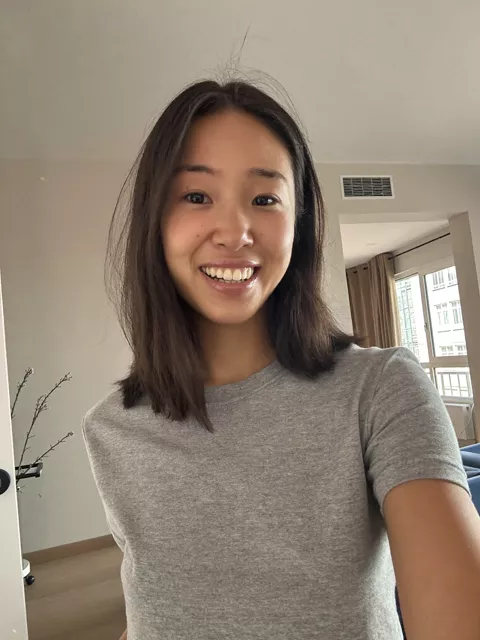

Fix 1: Name the Tone, Do Not Just Say “Keep My Face”
“Keep my exact facial features” protects geometry. It does not reliably protect colour. Skin tone needs its own words, and vague ones do not survive — “natural skin” means nothing to a model that already thinks its output is natural.
Describe what is actually there:
Keep my exact skin tone and undertone unchanged — do not lighten,
brighten or even it out. Keep my freckles, moles and skin texture
exactly as they are in the original photo.
If you know your undertone — warm, olive, golden, deep, cool — say it. A concrete word gives the model something to hold onto that its average cannot overwrite.
Fix 2: Ban the Beautifying Explicitly
The beautify default responds well to being told no, and it needs to be told separately from the identity clause. These are the behaviours worth naming, because they are the ones that fire without being asked:
Do not beautify. Do not smooth or retouch my skin. Do not slim my
face or jaw. Do not enlarge my eyes. Do not remove blemishes, scars
or under-eye shadows. Do not make me look younger.
It reads blunt, and it works better than anything softer. “Natural-looking” is not an instruction; “do not smooth my skin” is.
Fix 3: Keep Texture in the Style Words
Style vocabulary quietly carries brightness with it. “Glowing”, “radiant”, “luminous”, “flawless”, “porcelain”, “dewy” and “clean” all pull toward lighter and smoother, even when you meant them to describe the light in the room rather than your face.
Swap in words that describe the scene instead of the skin. “Warm afternoon light through a window” gets you the same mood as “radiant glowing skin” without instructing the model to bleach anything. If you want a film look, terms like “fine grain” and “visible skin texture” pull in the useful direction.
Fix 4: Change the Scene, Not the Person
The more of the image the model rebuilds, the more of you it re-averages. An edit that changes background and lighting while leaving the subject alone drifts far less than one that restyles the whole portrait.
Structure the prompt so the face is explicitly outside the scope of the change:
Change only the background and the lighting. Leave my face, skin tone,
skin texture and hair exactly as they are in the original photo,
pixel for pixel where possible.
Fix 5: Compare at Full Size, Side by Side
Drift is designed to be hard to notice one image at a time. Open the original and the result at full size next to each other and look specifically at four things: the shade of the forehead and neck, whether moles and freckles are still where they were, whether the jawline narrowed, and whether the skin has any texture left at all.
The neck is the most useful tell. Editors often lighten the face and leave the neck closer to the original, so a visible seam between face and neck means the tone moved.
Fix 6: Fix It in a Second Pass
If everything else about the image is right, do not start over. Feed the result back in and correct the one thing:
This image is correct except the skin. Restore my original skin tone,
undertone and texture from the attached source photo, including
freckles and moles. Change nothing else.
Attach the original alongside it if the tool allows two images. Giving the model the reference back is much more effective than describing it in words.
Putting It Together
Protect colour and texture separately from geometry, say no to the beautify behaviours by name, avoid style words that smuggle brightness in, and check the neck. Most of it is one extra paragraph pasted onto a prompt you already have.
Every transform prompt in our prompt library that involves a person carries an identity-preservation clause, and the clauses above are written to be pasted on top of one when tone is what matters to you. The prompt generator assembles the rest of the edit.
FAQ
Is this a bias problem or a technical problem?
Both, and they are hard to separate in practice. The averaging is a property of how the models reconstruct faces, and what counts as flattering was learned from data that was not evenly distributed. What matters on your end is that it is not random — it pulls in a consistent direction, so you can write against it.
Does it affect some people more than others?
Yes. The further your features sit from whatever the model treats as the middle, the more there is to pull back, so the drift is larger and more noticeable. If it feels like these tools work better for other people’s photos than yours, that observation is not paranoia.
Why does it still happen when I said “keep my exact features”?
Because that clause is usually read as being about shape — eyes, nose, face structure. Colour, texture and the beautify pass sit outside it. They need naming separately, which is what Fix 1 and Fix 2 are for.