Your AI Clip Is Only 5 Seconds — Extending and Stitching Without the Seams
You animated your photo, it looks good, and it is over before the song gets going. Five seconds is enough for a GIF and not enough for a Reel, and asking for “a 20-second video” in the prompt changes nothing.
There are three ways to get something longer. They are not equally good, and the one most people try first is the one that goes wrong fastest.
Why the Clip Is Five Seconds
Clip length is a setting, not a request. Most photo-to-video tools generate a fixed set of lengths — often five or ten seconds — and the number you type in the prompt does not override it.
We can show this from our own library. Of our 20 animate prompts, five ask for 4 seconds, fourteen ask for 5 and one asks for 6. All 20 of our preview clips are 5.04 seconds long. Whatever the prompt said, every clip came back the same length.
So the first fix is the obvious one: if your tool offers a longer duration option, use it. It costs more, and longer clips give drift more time to build — faces, hands and clothing change more over ten seconds than over five. For anything longer than that, you are building it from pieces.
Option 1: The Tool’s Own Extend Button
Some video tools offer an extend or continue option that generates the next few seconds from where your clip ends. When it exists, it is the easiest path, because the tool carries the motion across the join for you.
The catch is that each extension starts from the end of the previous one, not from your photo. Whatever drifted in the first clip is the starting point of the second. After every extension, check the face against your original photo, not against the clip before it — each one only compares itself with what came just before.
Option 2: Chain From the Last Frame (and Check It First)
If your tool has no extend option, the manual version is to export the final frame of the clip and use it as the start image for the next one. This works, and it has one trap.
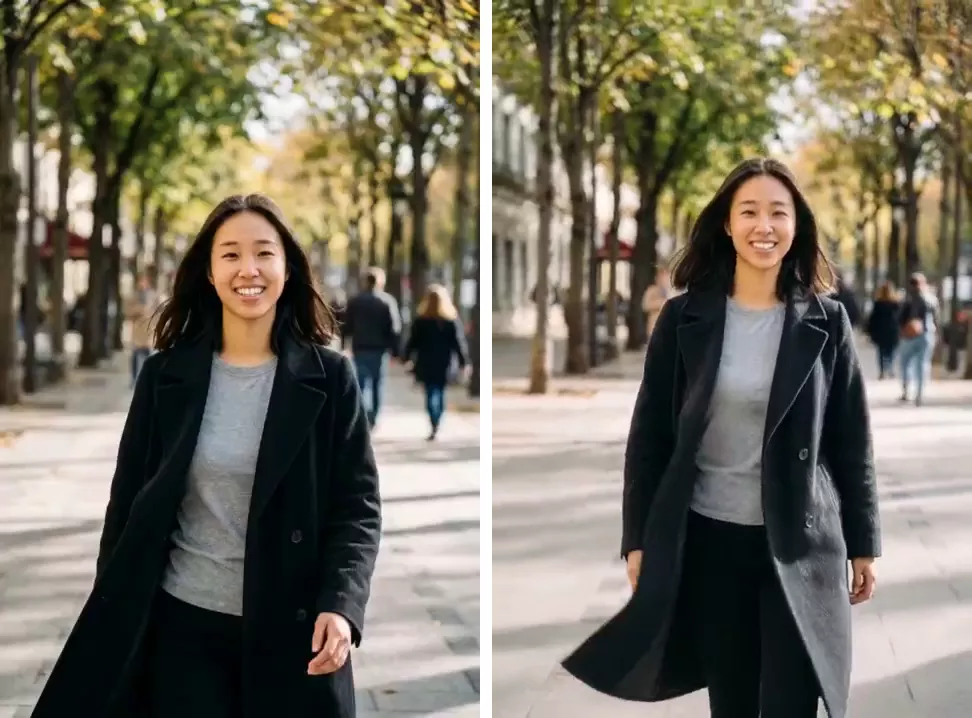
The last frame of a clip is where drift is greatest. Chain from it and the next clip inherits every change, then adds its own. Over three or four clips, small changes add up to a different coat, a different haircut, sometimes a different person.
Before you use a frame as a new start image:
- Compare it with your original photo — face, hair, clothing, anything that matters.
- Pick a sharp frame, not one mid-gesture with motion blur. It does not have to be the very last one; a frame half a second earlier is often cleaner.
- Re-state what must not change in the next prompt, because the model only knows what is in the new start frame.
Continue from this frame. The person keeps walking toward the
camera at the same pace. Keep the face exactly as in this image.
Their coat is solid black wool all over — keep it solid black.
Same street, same light, 5 seconds.
Option 3: Do Not Extend — Cut
This is the approach we recommend for most posts. Instead of one long continuous shot, make several five-second clips from the same original photo, each with a different motion, and cut between them in an editor.
Every clip starts from your real photo, so drift never compounds. A cut is also a normal thing to see in a video, which a slightly wrong continuation is not. Three clips of five seconds, cut together, make a fifteen-second video with no seam to hide.
Write the set as a sequence of shots:
Clip 1: Slow push-in on the face, soft smile forming, hair moving
gently in a light breeze. Keep the face exactly as in the photo.

Clip 2: The person turns their head slowly toward the light and
looks back at the camera. Keep the face exactly as in the photo.

Clip 3: Gentle camera drift to the left, the person laughs softly.
Keep the face exactly as in the photo.
Run each as its own generation from the same photo. The prompt library has a set of subtle-motion prompts that work well as interchangeable shots, and the prompt generator can build a motion line for each one.
Stitching: Making the Joins Disappear
Whichever option you choose, the joins are where the edit is won or lost. Any phone or desktop editor will do this.
- Trim the ends. The last few frames are where drift is worst, and the first few can be stiff while the motion gets going. Trimming a few frames off each side of a join gives you a cleaner match.
- Use cuts, not long crossfades. A short dissolve can soften a jump. A long one shows two faces overlapping, which looks worse than a cut.
- Cut on movement. A cut lands best mid-motion — during a head turn, a step, a camera move — where the eye expects change.
- Keep the colour consistent. Clips from separate generations can come back slightly warmer or cooler. Apply the same filter or grade to all of them.
For a looping post, a five-second clip played forward and then backward gives a ten-second loop with no visible join. It works best with gentle motion — hair, light, breathing — and looks odd with walking or anything that obviously goes one way.
Check the Whole Thing, Not the Thumbnail
Before you post, watch the joined video at full size and pause at each join. Then check the first, middle and last frames against your original photo. Drift is easy to miss while a video is playing.
If the video shows other people, they should be fine with it being animated and posted, and the result should be labelled as AI-generated when you share it.
FAQ
Can I just ask for a 30-second video in the prompt?
No. The length comes from the tool’s duration setting, and in our tests the number in the prompt did not change it. Generate several shorter clips and join them.
Why does my stitched video jump at the join?
Usually because the second clip’s start frame does not quite match the first clip’s end — slightly different lighting, pose or framing. Trim a few frames off each side of the join, or replace the join with a deliberate cut to a different motion.
Is slowing a clip down a good way to make it longer?
For gentle motion — hair, light, a slow push-in — slowing it slightly can work. Anything with walking or gestures starts to look sluggish, and heavy slowing makes the motion stutter. Building from several clips holds up better.