The AI Cropped My Photo — Aspect Ratio and Framing Control
You uploaded a vertical photo and got a square one back. Or the shape is right but your head is nearly touching the top edge. Or you asked for space beside you for text and the result is you, dead centre, with a plant.
These arrive as one complaint and they are three separate problems. Only one of them is fixed by asking for a different ratio.
Problem 1: The Output Shape Is the Model’s, Not Your Photo’s
This is the one people find hardest to believe. An image editor is not cropping your photo — it is generating a new image, and the canvas it generates on is its own default unless you say otherwise. Your upload is a reference, not a template.
So the fix is to say the shape out loud, every time it matters:
Output a vertical 9:16 image. Do not crop the subject.
Keep the full head and shoulders inside the frame with margin
above the hair.
Name the ratio in numbers rather than words. “Vertical” is satisfied by 4:5 and by 9:16, and those are very different pictures if the destination is a Reel.
Worth knowing about our own library: only 3 of the 77 prompts state an explicit aspect ratio, and all three are video prompts. The other 74 leave the shape to whatever tool you paste them into. That is deliberate — the right ratio depends on where you are posting — but it does mean you should add the line yourself.
Problem 2: Composition Requests Are Weaker Than Style Requests
Asking for a ratio usually works. Asking for something to sit somewhere inside the frame is much less reliable, because composition competes with every style instruction in the prompt.
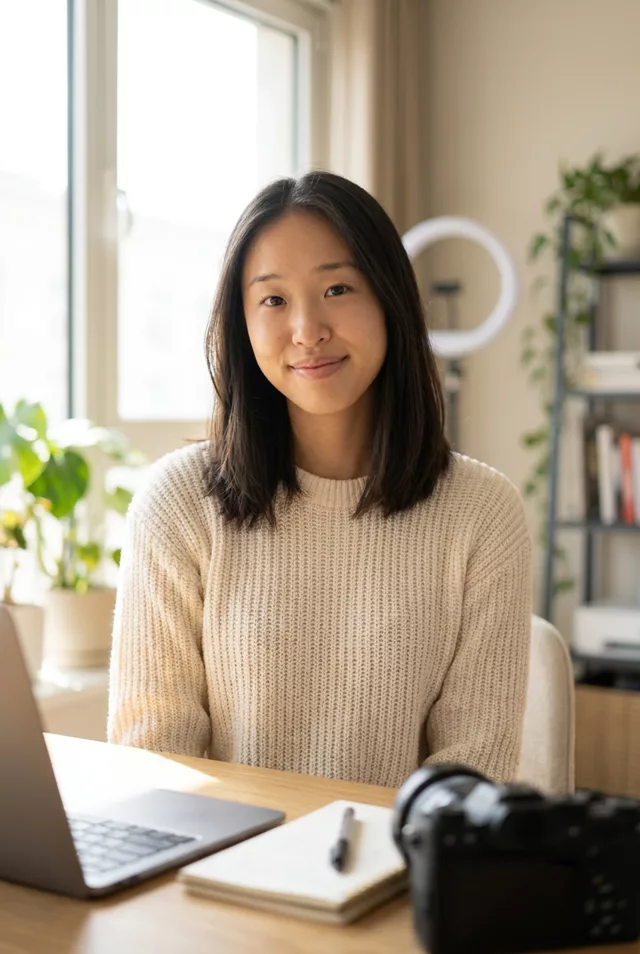
If you need copy space, say which side and what belongs there:
Place me on the left third of the frame, facing right.
The right third must be a plain uncluttered wall with no objects,
shelves or plants — empty space for text.
Naming the emptiness as a thing to render works better than naming it as a thing to leave.
Problem 3: Video Crops as It Moves
Photo-to-video prompts change the framing over the clip, and a camera move is a crop that gets tighter while you watch.
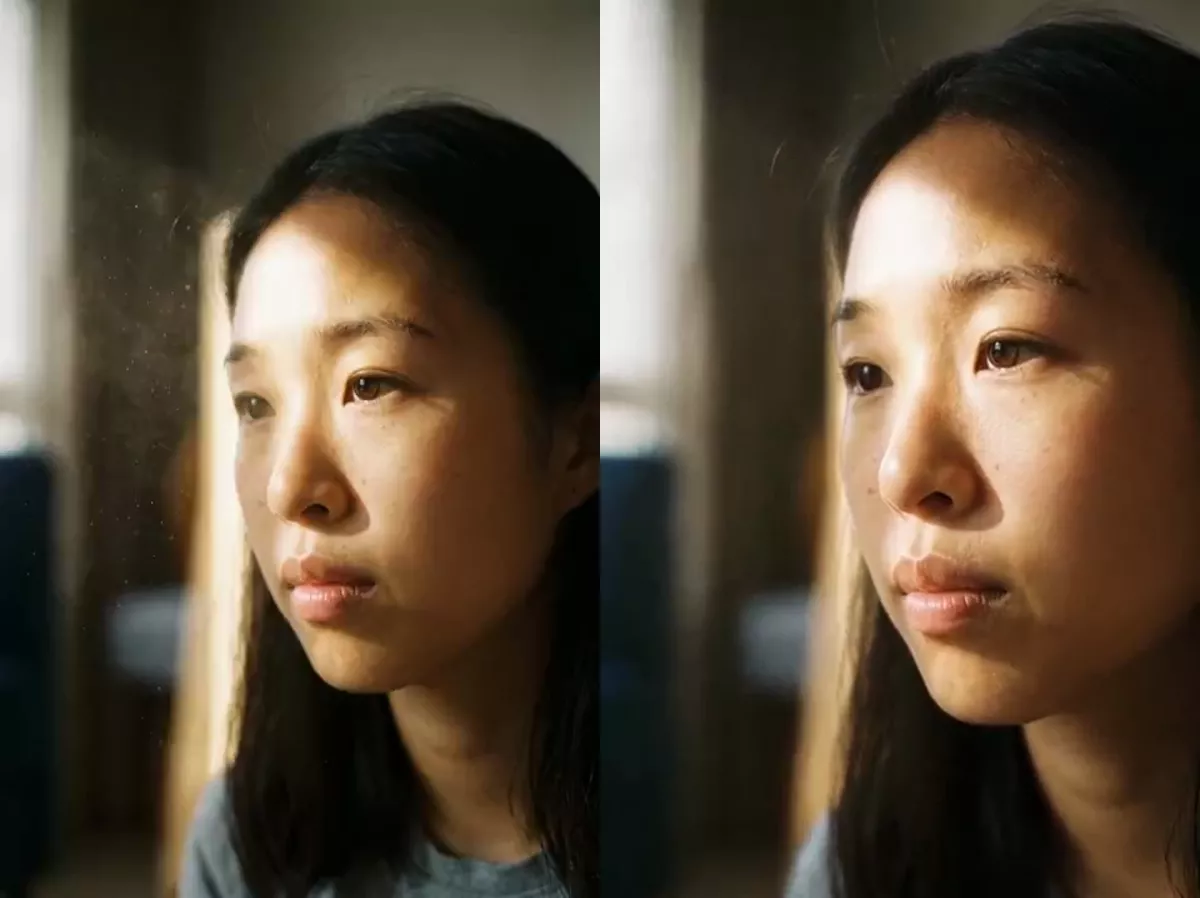
Two fixes. Start wider than you want to end — leave more margin in the source than the still would need. And name the endpoint:
Slow push-in over five seconds, ending on a head-and-shoulders
framing with the whole head inside the frame and visible headroom.
Do not crop the top of the head at any point.
Fix 4: Grids and Multi-Frame Layouts Pick Their Own Canvas
Anything that asks for a grid, a strip or a set of panels is really asking for a layout, and the layout usually decides the shape. Our decades-grid prompt is the only one of our 65 before-and-after pairs whose result is square rather than vertical — the 4×4 grid wanted a square canvas and took one.
That is reasonable behaviour, and it is a problem if the output is going somewhere vertical. State the outer shape as well as the grid:
A 3x3 grid arranged inside a vertical 9:16 frame.Fix 5: Crop Last, Not First
A common instinct is to crop the source to the ratio you want before editing. It does not help — the model regenerates on its own canvas anyway — and it costs you pixels around the subject that the edit could have used.
Upload the fullest version you have, state the ratio in the prompt, and do any final crop yourself afterwards in whatever you already use. You keep control of the exact framing and you do not spend source detail on a crop the model ignores.
Fix 6: Check Before You Post, Not After
Three things to look at in the result, at full size:
- Is anything cut that should not be — the top of the head, a hand, a foot?
- Is the subject where you asked, or has it drifted to the middle?
- Is the ratio actually what you asked for, or close enough that you did not notice? 4:5 and 9:16 look similar in a thumbnail and crop very differently on a phone.
If you build a prompt in the prompt generator, the ratio is not one of its options — it assembles style, subject and mood — so add the line from Problem 1 yourself. The same goes for anything you copy from the prompt library.
FAQ
Why does it ignore the aspect ratio of my upload?
Because your upload is a reference for content, not a specification for output. Most editors have a default canvas and use it unless told otherwise. Some interfaces have a ratio setting separate from the prompt box — if yours does, use that rather than the prompt, since it is a hard constraint rather than a request.
I asked for 9:16 and got something close but not exact. Is that fixable?
Usually not through the prompt, and it does not matter much: crop the result to exact 9:16 yourself. A few pixels of trim is harmless, which is why leaving margin in the first place is the real fix.
Can I get a specific part of the photo kept and the rest cropped?
Describe what must stay rather than what to remove: “keep both people and the doorway behind them fully in frame”. Negative framing instructions — “crop out the car on the left” — tend to produce an image that still has a car in it.