Why Faces Warp When Your Photo Becomes a Video — 8 Fixes
The still image came out perfect. You fed it to Kling or Veo, waited two minutes, and the person in the clip is someone else by second three. The face swells, the jaw slides, an eye drifts off-centre — and then it settles back just in time for the last frame.
This is the most common complaint with photo-to-video, and it is a different problem from identity drift in a still edit. A still has one face to get right. A five-second clip has roughly 120 of them, and the model has to invent every frame after the first.
Why It Happens
Video models generate motion by predicting how pixels should change over time. They anchor hard on your source frame and then drift a little with each new frame, and small errors compound. Faces are where you notice it first, because human vision is tuned to spot exactly those errors.
Three things make the drift worse: motion the model has to guess at (a head turning away and back), a face that occupies too few pixels to begin with, and prompts that ask for several things at once. Every extra instruction is another thing competing with “keep this face.”
Fix 1: Make the Face Bigger in the Source
This is the single highest-leverage change. If the head is a small part of the frame, there is not enough facial detail for the model to carry across 120 frames, and it fills the gap by inventing.
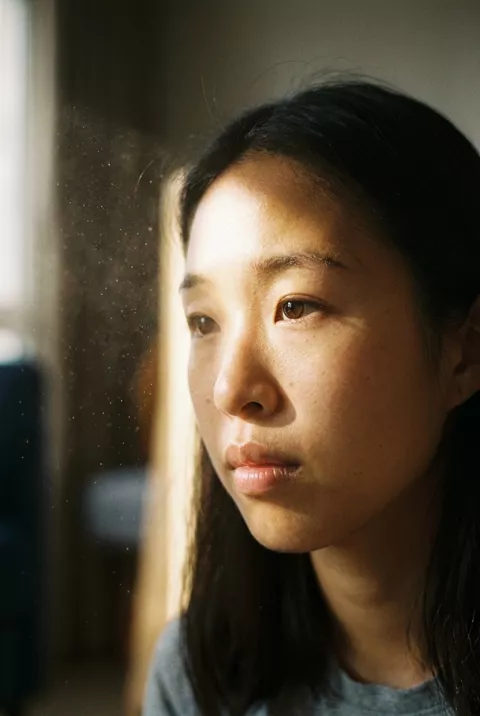
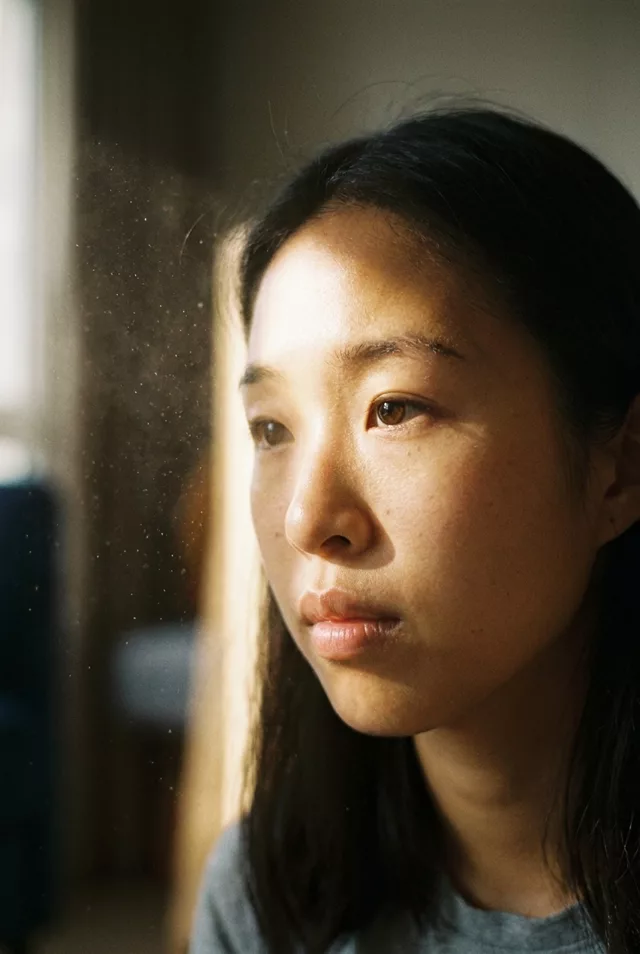
Crop your source image so the face occupies at least a third of the height before you animate it. A tighter crop with a stable face beats a full-body shot with a melting one.
Fix 2: Ask for Less Motion, Not More
The instinct when a clip looks lifeless is to add movement. That is backwards. Every degree of head rotation is a range of angles the model has never seen, and it has to guess the parts of your face that were hidden in the source.
Small motion holds a face. Big motion breaks it. “She blinks and breathes gently” is nearly always safe. “She turns to look over her shoulder, then smiles” is asking for a stranger.
Subtle, minimal motion only. The subject blinks naturally and breathes.
Head stays in the same position throughout — no turning, no tilting.
Keep the face identical to the source image in every frame.
Fix 3: Move the Camera Instead of the Person
If you want the clip to feel cinematic, move the camera and keep the subject still. A slow push-in or a gentle drift reads as expensive film-making, and it costs the model nothing in facial accuracy, because the face keeps the same angle the whole time.
The subject stays completely still. The camera slowly pushes in
over five seconds. Dust drifts in the light. Face unchanged throughout.
Fix 4: Say “Do Not Change the Face” Explicitly
Video prompts tend to be written entirely about motion, so nothing in them defends the face. Add a clause that does. It works for the same reason it works in still transforms: the model weights what you actually asked for.
Preserve the subject's exact facial features, face shape and proportions
in every frame. Do not beautify, do not smooth the skin, do not change age.
Fix 5: Cut the Clip Short
Drift compounds, so the last second of a clip is almost always the worst. If your tool lets you pick a duration, take five seconds over ten. If it does not, generate the longer clip and trim the tail — you usually lose nothing but the part where the face went wrong.
Fix 6: Fix the Still First
A video model cannot preserve detail that was not there. If your source is soft, low-resolution or heavily filtered, the model has to invent facial structure from the first frame onward, and it will keep inventing.
Sharpen and upscale the still before animating, and check it at full size. A source that looks fine as a phone thumbnail is often mush at generation resolution. Our source photo checklist covers what to look for.
Fix 7: Avoid Profile and Extreme Angles
A three-quarter or straight-on source gives the model both sides of the face to work from. A sharp profile gives it one, and anything that rotates toward the camera has to be fabricated wholesale. If your favourite photo is a profile shot, keep the motion to a blink and a breath, or pick another photo.
Fix 8: Regenerate Rather Than Rewrite
Video generation is noisy, and two runs of an identical prompt can differ a lot. If a clip fails in a way that seems random — one bad second in an otherwise clean take — run it again before you start editing the prompt. Rewriting a prompt that was already fine is how people end up with worse results and less credit.
Putting It Together
The pattern behind all eight fixes is the same: give the model more facial information and less to guess at. Bigger face, sharper source, smaller motion, shorter clip, explicit instruction.
If you want a starting point that already follows these rules, the animate prompts in our prompt library are written with the motion kept deliberately small, and the prompt generator lets you build one by picking a motion type and camera move rather than writing it from scratch.
FAQ
Does this happen more with some models than others?
Every current photo-to-video model drifts to some degree — it is a property of how they generate frames, not a bug in one product. What differs is how gracefully they fail. It is worth running the same source through more than one and keeping the one that holds up.
My pet’s face warps too. Same fixes?
Mostly. Fill the frame with the animal, keep the motion to an ear twitch or a slow blink, and state the markings you want preserved by name — “keep the white patch on the chest and the exact eye colour.” Animal faces drift in the same way, and models are less practised at them.
Can I fix a warped clip after the fact?
Not really. The frames are already generated, and there is nothing to recover the original face from. Trimming the bad section is the only reliable option, which is another argument for short clips.