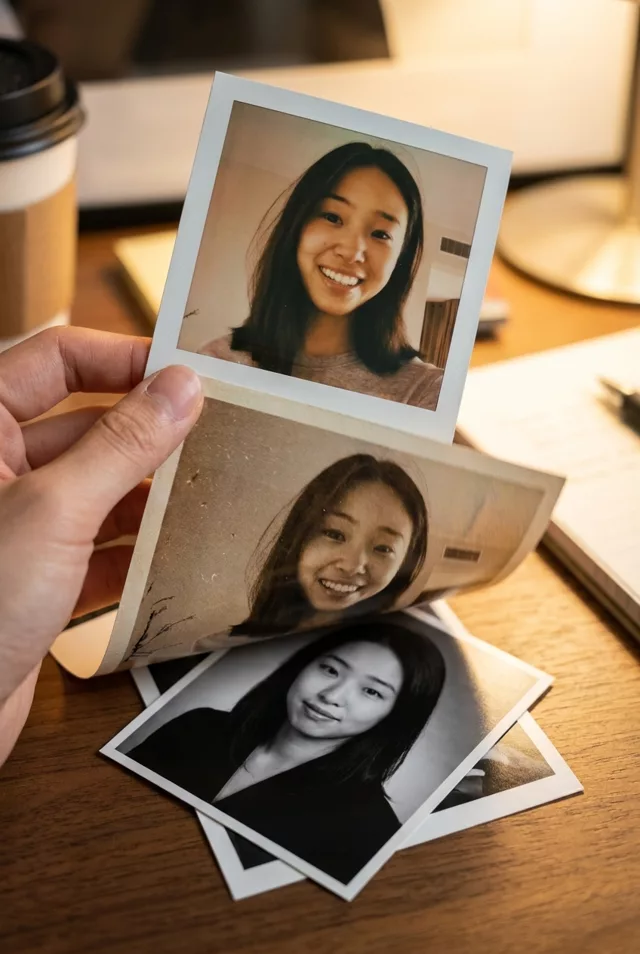
Step 2 · Photo → Video
Before / After Reveal
A light sweeps across and restores the photo on screen — the perfect reveal for restoration content.
The prompt
Start on this damaged old photo, then a soft light sweeps across the frame from left to right, restoring it to vivid repaired condition as it passes. Keep every face exactly the same through the transition. Gentle satisfying pace, subtle sparkle at the light's edge, vertical 9:16 framing, 4 seconds.
How to use it
Only edit photos you have permission to use, including permission from the people pictured.
- Keep the damaged original and prepare a restored still with the same crop if you want to control the final face.
- Upload the damaged image and paste the prompt. If the tool supports a final-frame reference, add your restored still; otherwise the prompt asks the model to invent the repair. Request 4 seconds where the tool allows it; this is the requested clip length, not a generation-time estimate.
- Compare the revealed face with the original and your restored reference. If identity changes, make a wipe between your own two stills in a video editor instead.
- Download the accepted clip and label it as AI-made when sharing. Keep the source still so you can compare later revisions.
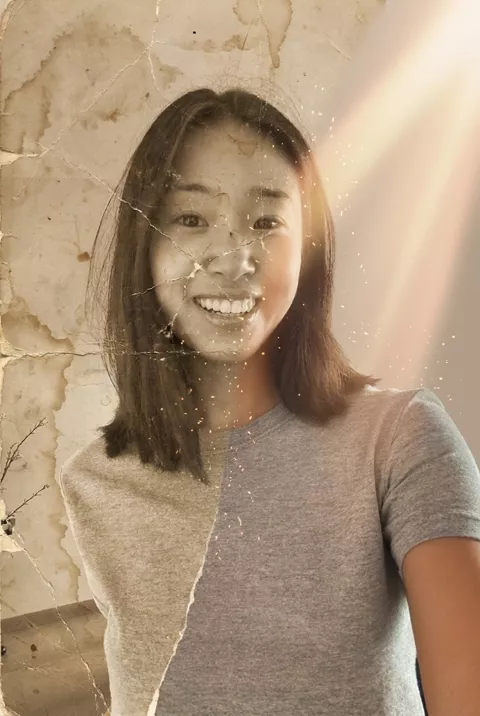
What happened when we tested it
The 'after' is not a restoration of the 'before'. In ours the damage sweeps away convincingly, but the face underneath changes as it goes — narrower jaw, wider smile, visibly lighter hair by the end. For a real family photo that defeats the purpose. Supply both stills yourself, damaged and restored and cropped identically, rather than letting the clip invent the clean version. Our final frame also came back overexposed next to the middle.